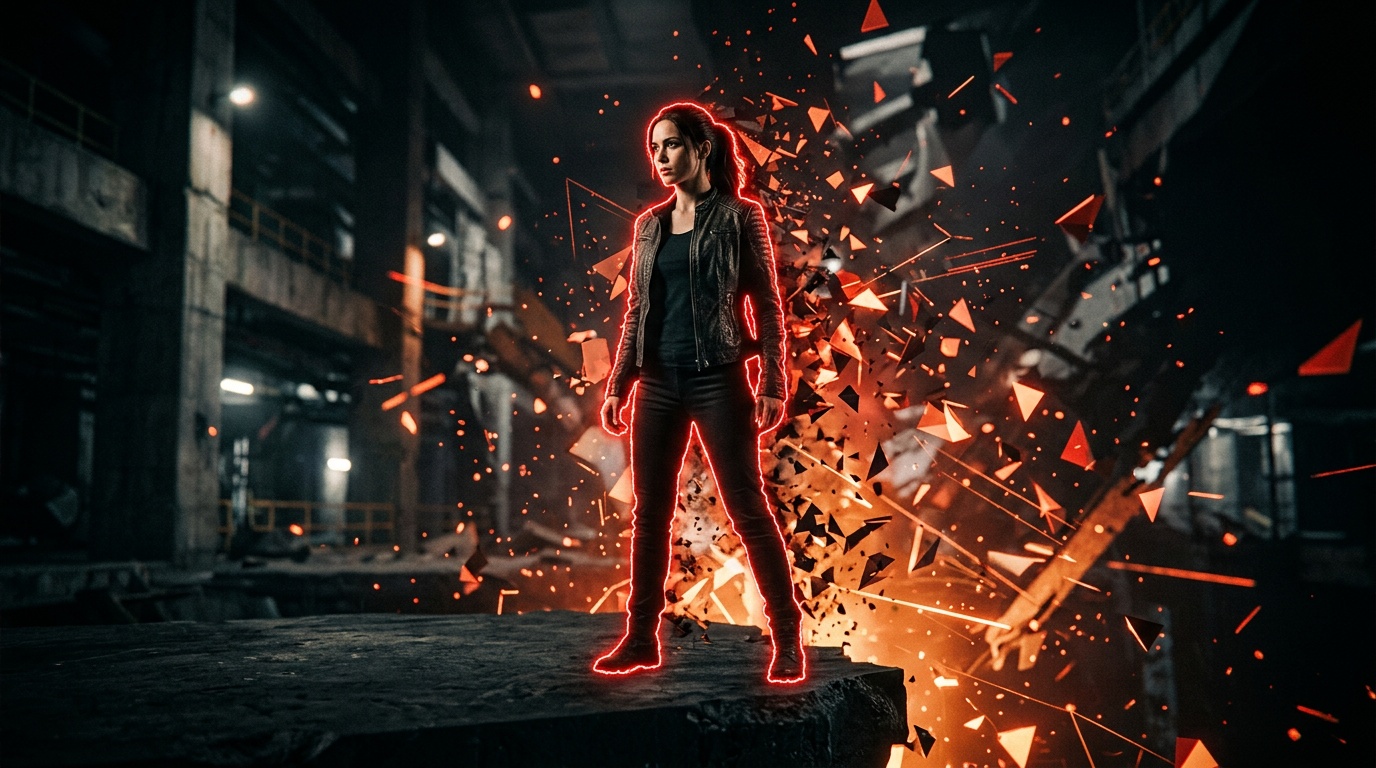
You shot a product on your kitchen table. The photo came out fine, but the yellowish background kills the whole effect. You know it needs a clean white backdrop, or a real scene, or a gradient that matches your brand. That used to mean an hour in Photoshop. Today it is ten seconds with AI.
Background removal is one of the most common operations in image editing, from e-commerce product shots to social media portraits. AI has turned it from a skill-dependent chore into a routine step anyone can do, with no design background and no expensive software.
How AI Removes Backgrounds: The Short Technical Story
The old workflow was manual cutting: lasso selections, layer masks, pixel-by-pixel cleanup. Time-consuming, and the result depended entirely on your skill.
AI background removal models work completely differently. Trained on tens of millions of images, they learned to detect semantic edges: not just color differences, but an actual understanding of "this is an object, this is a background." The model recognizes hair, fingers, transparent glass, fur, and cuts precisely in places where a human would give up.
The current generation of tools, including Kolbo Canvas, adds an edge refinement layer on top: smoothing outlines, removing color halos, and producing a result that looks like it was shot on a professional green screen.
Which Images Work Best, and Which Are Hard for AI
Before you upload, it helps to know what the AI excels at and what challenges it:
Images the AI handles brilliantly:
- Products on a uniform background: a bottle, a shoe, a phone. High contrast between object and background means a near-perfect cut
- Decent-quality portraits: faces and straight hair with good lighting
- Objects with clear edges: furniture, electronics, jewelry
Images that need more work:
- Curly or fine hair: modern algorithms do far better than they used to, but this is still the hardest test
- Transparent clothing or lace: AI does not always understand what is see-through and what is solid
- A product the same color as its background: white bottle on a white table is a problem. Shoot with contrast
Practical tip: before running background removal, make sure the image is in focus, evenly lit, and that the subject fills at least 30 percent of the frame. It dramatically improves the result.
Step by Step: Removing a Background in Kolbo Canvas
Kolbo Canvas is Kolbo's built-in editor, combining AI tools and manual tools in one interface. Here is the workflow:
Step 1: Open a new Canvas session
Open Canvas from the Kolbo menu, click "New Session," and name it something useful, for example "Product photos, Summer 2026."
Step 2: Upload your image
Drag the file into the interface or click Upload. Canvas supports JPG, PNG, and WEBP up to 20MB.
Step 3: Choose Remove Background from AI Tools
In the toolbar you will find the AI Tools section. Click Remove Background. The AI processes in roughly 5 to 15 seconds depending on file size.
Step 4: Inspect the result
Canvas shows the image on a checkerboard background, the classic transparency preview. Check hair edges, fingers, and any complex outlines. If a spot needs fixing, move to step 5.
Step 5: Manual refinement if needed
Canvas includes a Draw tool with a precise erase mode: mark additional areas to remove, or restore parts that were cut by mistake. Everything happens in layers, so the original image is never touched.
Step 6: Add a new background
This is where it gets fun. Canvas gives you several options:
- Solid color: clean white for catalogs, black for a dramatic look
- Gradient: great for social media
- An image: upload a backdrop you shot or generated
- AI-generated background: describe the scene in text and the AI generates a backdrop that fits the object
Combining With Other Canvas Tools
Background removal is a starting point, not the finish line. In Kolbo Canvas you can continue directly to:
Reframe: after removing the background, Reframe extends the frame around your object with generated content. Useful when you need the same hero image in multiple formats, square for Instagram, 16:9 for a banner.
Text Tool: add marketing copy directly on the image. Canvas has full RTL support, so Hebrew and Arabic text work naturally alongside English.
Adjustments: after placing the object on a new background, tune brightness, contrast, temperature, and shadows so the object looks like it belongs in the scene rather than pasted on top.
Enhance Skin: for portraits, run Enhance Skin after the cutout for a professional finish.
AI vs. Manual Photoshop: The Honest Comparison
| Criterion | Manual Photoshop | AI in Kolbo Canvas |
|---|---|---|
| Time per image | 15 to 60 minutes | 10 to 30 seconds |
| Learning curve | Very steep | None |
| Hair edge quality | Depends on expertise | Very good |
| Follow-up editing | Everything available | AI plus manual tools in one place |
| Price | $60/month (Creative Cloud) | Included in Kolbo |
For a mid-size e-commerce store shooting 50 products a month, switching to AI saves dozens of hours of work. And for anyone who does not own Photoshop at all, it is the only realistic path to professional results.
Practical Use Cases
Shopify, WooCommerce, and marketplace stores: every platform prefers product images on a clean white background. AI background removal gives your entire catalog that uniformity, even when the photos were shot in different conditions.
Landing pages: an object with no background sitting on your brand gradient looks like design work that cost thousands. Now it is ten seconds in Canvas.
Social media: a story that combines a real product with an AI-generated backdrop stands out in the feed and does not look like stock photography.
Headshots and presentations: cut a portrait from its background, place it on a solid brand color, and you have a professional photo for any use.
One Last Tip: Keep Your Originals
Canvas works non-destructively: operations are saved as layers and you can undo at any stage. Still, export the original PNG before removing the background, keep it in an "originals" folder, and work on copies. Future you will be grateful.
Ready to try it? Join Kolbo for free, no credit card required. Upload a product photo, click Remove Background, and see in ten seconds what AI can do.