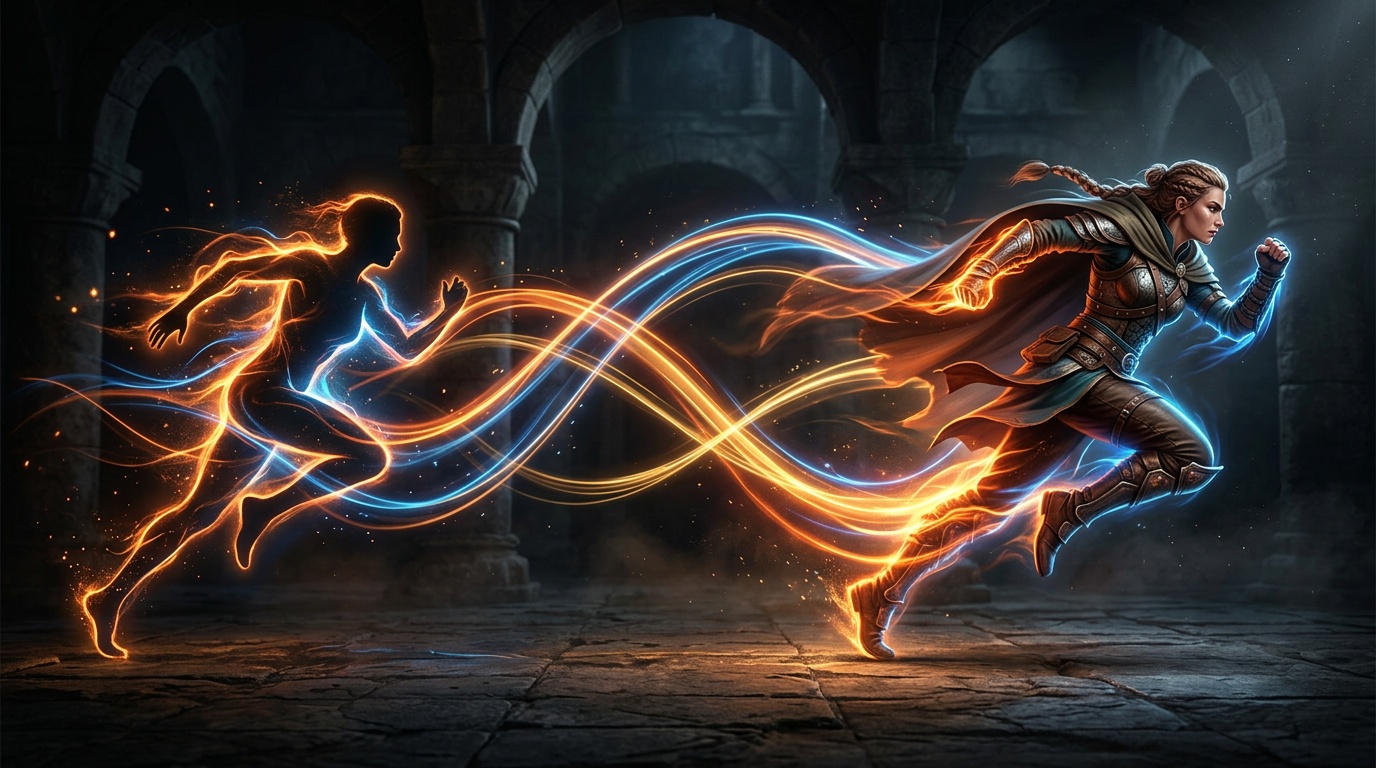
You have a character. Maybe it is your brand mascot, a character you drew, or an avatar you generated with AI. The old problem was always the same: how do you make it move naturally without hiring an animator, without learning 3D software, and without spending weeks on a thirty-second project?
Motion transfer solves exactly that. The idea is simple: you bring a video with real movement, a person dancing, an athlete jumping, someone talking and gesturing, and the AI lifts that motion and applies it to your character. Your character performs the exact same moves, with the same rhythm, the same energy, the same liveliness as the source.
This guide covers how AI motion transfer works, what separates a good reference video from a useless one, and the step-by-step workflow inside Kolbo.
How Motion Transfer Works
The process is essentially two and a half steps:
Step 1: Upload a character image. This can be a basic PNG, an image you generated with Nano Banana 2 or GPT Image 2, or artwork from any other tool. The character should be clearly visible, ideally on a clean background.
Step 2: Upload a reference motion video. This is the clip that contains the movement you want to transfer. The AI analyzes the poses, positions, and timing, and builds a map of the moving skeleton.
Step 2.5: The AI does the work. The model generates a new video in which your character performs the same motion. Inside Kolbo you can choose between several video models, including Seedance 2 (the current flagship) and Kling, each with different strengths. You can run multiple versions in parallel and keep the one that nails it.
No rigging. No keyframes. No animation timeline.
Who Motion Transfer Is For
Brands with mascots
If you have a mascot, an animal, a character, an animated logo, you no longer need to brief an animator on exactly what you want. Find a video with movement that feels right for your mascot and transfer it directly. Within minutes you have a clip ready for social.
TikTok and Instagram creators
Dance challenges are the clearest example. A dance trend takes off, you find the viral clip, and you transfer the choreography to your virtual character. The character performs the dance exactly like the original, and you ship trend-relevant content the same day, without appearing in a single frame yourself.
Game developers and indie creators
Need to animate a character for a demo, a personal project, or a pitch? Motion transfer skips the entire rigging and manual animation stage. Upload an image, find a suitable reference video, and you have a base to build from.
E-commerce teams
A character presenting a product, modeling a garment, or explaining a feature can be animated naturally without a reshoot. That opens the door to content that would otherwise be prohibitively expensive to produce every season.
What Makes a Good Reference Video
Not every clip transfers equally well. A few practical rules:
Lighting and background. The clearer the person stands out against a clean background, the better the AI reads the skeleton. Studio-style footage beats a busy street scene.
Full body vs. partial. If the motion is a full dance, the video needs to show the body from head to feet. Hand gestures only? An upper-body frame is enough.
Pace and clarity. Slow, deliberate movements transfer with higher accuracy than fast, blurry ones. If the source clip has motion blur, the result will inherit the mushiness.
Appropriate length. Clips of 3 to 10 seconds tend to give the most consistent results. Very long videos can drift in animation quality toward the end.
Step by Step: Motion Transfer in Kolbo
- Prepare your character image. Use a high-resolution image, at least 512 by 512 pixels, ideally 1024 or more. Generate one with Nano Banana 2 or GPT Image 2 if you do not have artwork yet.
- Find or record your reference video. Follow the rules above: clean background, clear motion, 3 to 10 seconds.
- Open the Motion Transfer tool in Kolbo's video tools, upload both inputs, and pick a model. Seedance 2 and Kling are both strong choices; if you are not sure, run both.
- Generate and compare. Because everything runs from one credit balance, trying the same inputs on two models costs you a couple of minutes, not two subscriptions.
- Finish in the editing tools. Trim, add music, or reformat for vertical directly inside Kolbo, then export for social.
Three Concrete Examples
1. A startup mascot that presents the product. A fintech company designed a character for its app, found a clip of a TED speaker explaining with lively hand gestures, and transferred the motion to the character. The result: a promo video where "the mascot" pitches the product. Cost: a few credits. The alternative: hours of production.
2. An influencer with an avatar. A creator who wants to protect their privacy built an animated avatar. When a new dance trend breaks, they grab the viral clip, run motion transfer in Kolbo, and post their avatar performing the routine, without ever appearing on camera.
3. A product with a face. An online shoe store created a short character that models footwear. Each season they pick two or three high-quality walking and running clips and run motion transfer, building a library of clips that show the shoes in motion with zero reshoots.
The Real Unlock: Motion Transfer Plus Visual DNA
Motion transfer alone is already useful. Combined with Visual DNA, Kolbo's character consistency system, it becomes a different game.
Visual DNA lets you lock in a specific character from a few images, so every generation produces exactly the same character with full visual consistency, no expensive model training required. Once you have a consistent character, motion transfer adds the missing layer: now the character does not just look identical in every frame, it moves.
That is the difference between an AI experiment and a real production workflow: consistent character plus real motion equals content that looks professional, repeatable, and on-brand.
Final Tips Before You Start
- Use a high-resolution character image, 1024 pixels or larger when possible
- Try multiple models (Seedance 2, Kling) on the same inputs; one may handle dance better while another excels at precise gestures
- If the result is not accurate enough, try a reference video with a cleaner, brighter background
- Feed the output into Kolbo's video editing tools for trimming, music, and reformatting before publishing
Motion transfer is one of those tools that turns "I have a character" into far more than was possible a year ago. The door is open. All you need is the right reference video.
Try motion transfer for free at app.kolbo.ai.