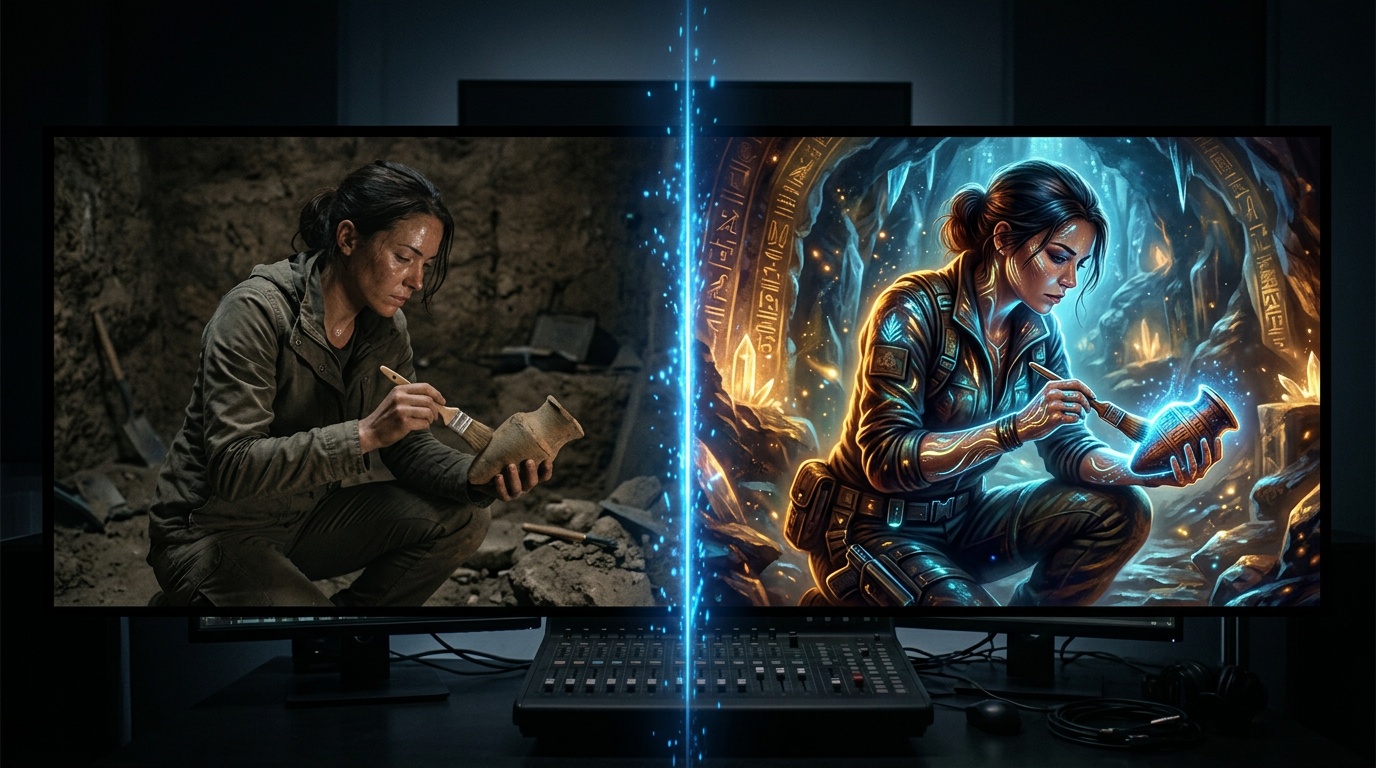
Most people know AI video as text-to-video: write a prompt, get a clip from nothing. Video-to-video is a different discipline entirely: you bring an existing video and transform it. The scene stays, the motion stays, but everything else, the style, the character, the energy, can change completely.
This unlocks things that were impossible a year ago: turning live footage into animation, replacing an actor without a reshoot, transferring a professional dancer's movement onto an illustrated character. Kolbo.AI brings all of these tools together in one place, with the leading models on the market behind them.
The Three Main Modes
1. Style Transfer: Repainting Your Footage
Style transfer takes your video and redraws it according to a style you define. Same motion, same composition, but it now looks like anime, oil painting, film noir, or any aesthetic you describe.
Practical example: you filmed an interview in your living room with no studio budget. With style transfer you can turn the background into a futuristic set, add vintage film texture, or give the whole scene a cinematic 4K grade, without touching the original footage.
How to do it in Kolbo:
- Open the Video tools and choose Video to Video
- Upload your source video
- Describe the target style in the prompt; the more specific, the more precise the result
- Set the transfer strength: high values mean dramatic change, low values keep it subtle
- Pick a model and run
2. Character Replace: Swapping Who Is On Screen
This is one of the most powerful tools available right now. Character replace lets you take a video of a real person and swap them out, for a different character, a brand mascot, or a persona you created. The AI identifies the original subject, tracks their movement through the clip, and performs the replacement frame by frame.
Practical example: an actor recorded an explainer video, and you want the same content delivered by a different character, maybe an illustrated version of yourself. Character replace does it with no reshoot.
The workflow in Kolbo:
- Upload the source video with the original person
- Tell the AI which subject to replace; you can mark them manually on a frame
- Upload an image of the new character; the clearer the image and the better the angles, the more accurate the swap
- The AI preserves all the movement and posing of the original subject
- You get a finished video with the new character
Tip: the new character image should be high resolution, with a clear face, ideally on a plain background. A blurry reference image produces a blurry replacement.
3. Motion Transfer: Giving Your Character Someone Else's Moves
Motion transfer is the real magic for content creators. Take a video of movement, a dance, a sport, a walk, a hand gesture, and apply it to a character you created. Your character will move exactly like the performer in the reference clip.
Practical example: short-form creators can take the choreography of a viral trend and have their illustrated character dance it, without filming themselves or hiring a dancer.
How the process works:
- Upload the character image you want to animate: an illustration, a photo, an avatar
- Upload the reference motion video with the action you want to transfer
- The AI analyzes the joint positions across the reference clip
- It generates your character performing exactly that motion
- Optionally chain a style transfer pass on top for a fully finished look
Which Model Should You Use?
Kolbo gives you the leading video-to-video models side by side:
Seedance 2 is the current leader. It excels at fluid motion, artistic style transfer, and overall visual quality. If the goal is an impressive look with smooth movement, this is the default choice.
Seedance 2 Elements / Ingredients mode is how most people actually work with Seedance 2 today: building a new video out of reference material. You can feed in up to 9 images, up to 3 videos, and up to 3 audio files as "ingredients," and the AI composes the result from them. Ideal for reference-driven work where character, style, and motion all come from your own sources.
Kling stands out for temporal stability: characters do not flicker between frames. The latest Kling generation supports multi-shot output (several shots in a single run) and native audio. Recommended for dialogue clips, interviews, and static-camera content.
Veo is worth knowing for one specific superpower: spoken dialogue in languages other than English. Most video models only speak English natively. If your scene needs native speech in another language, Veo is the model that supports it. Alternatively, generate the video with placeholder speech and then replace just the mouth using video lipsync driven by your real audio track.
Practical advice: when in doubt, run the same clip through several models in parallel and pick the best result. In Kolbo that is a single click, since all the models share one interface and one credit balance.
Tips for the Best Results
- Short clip first. Test with 5 to 10 seconds before committing a long video. It saves time and credits when you need to tune the prompt or strength.
- Clear motion. For motion transfer, a reference video with sharp, unblurred movement produces a far better result than smeared footage.
- Be specific in the prompt. "Anime style" performs worse than "Studio Ghibli soft watercolor animation, warm tones, gentle movement."
- Keep strength under 0.7 for style transfer. Values above 0.8 usually destroy the source motion. A range of 0.5 to 0.65 balances visual change against preserved dynamics.
A Full Multi-Step Workflow
Say you are producing YouTube content and want an illustrated character explaining a topic:
- Motion transfer. Film yourself explaining for 30 seconds. Upload the clip plus your illustrated character image. You get the character delivering your performance.
- Style transfer. Run the output through style transfer with a prompt that reinforces the art direction.
- Lipsync, if the character speaks. Note the distinction: video lipsync replaces only the mouth inside an existing video while preserving the camera and body movement, which is exactly what this pipeline needs. Image lipsync, by contrast, turns a static portrait into a talking avatar. Different tools for different jobs.
- Video editing. Cut, add music from Suno, drop in a voiceover from ElevenLabs, and export, all inside Kolbo's browser Video Editor.
Every step above happens inside one platform, with no hopping between tools and subscriptions.
Ready to Try It?
Video-to-video is one of those capabilities that moves fastest from "fun experiment" to "core part of the production process." Once you see what it can do to footage you already have, it is hard to go back to shooting everything from scratch.
Try video-to-video on Kolbo.AI free: no credit card needed, all tools open. Within a few minutes you can upload your first clip and watch what AI does to it.