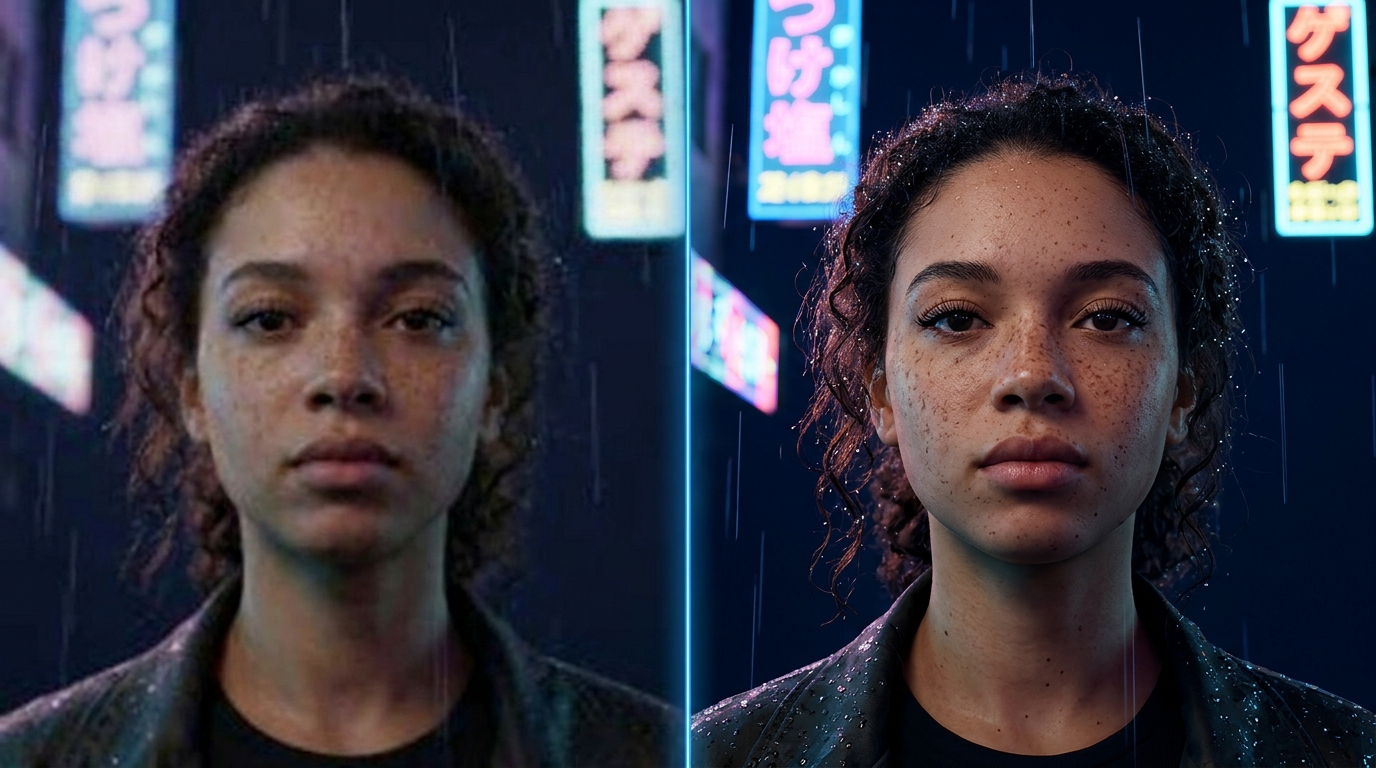
Most AI video models deliver 720p or 1080p. Old phone footage is often worse. Put either on a big screen, a client's TV or a 4K YouTube upload, and the softness shows.
AI video upscaling fixes that. Instead of simply stretching pixels, an upscaling model studies each frame and the frames around it, then rebuilds the detail a sharper camera would have caught: skin texture, hair, fabric, edges, text. The result is a true 4K file, not a blurry 1080p blown up.
Regular Resize vs AI Upscale
| Resize in an editor | AI upscale | |
|---|---|---|
| Pixels | Stretched | New detail generated |
| Edges | Soft, blurry | Crisp |
| Noise and compression blocks | Enlarged | Cleaned up |
| Faces and text | Smeared | Readable and sharp |
How to Upscale a Video in Kolbo.AI
- Open Video Tools and go to the video editing tools. Open video tools.
- Upload your video, or pick any video you already generated from your library.
- Choose Upscale and the target resolution, up to 4K.
- Optional: turn on frame interpolation to smooth motion to 60 fps. Great for slow, flowing shots and AI video that feels a little choppy.
- Generate. The cost is shown before you start, and the result lands in your library.
Kolbo.AI includes leading upscaling models such as Topaz and the Bytedance Video Upscaler, so you can pick the look you prefer for each project.
When to Upscale
Before publishing AI-generated video. Generate at 720p or 1080p while you iterate (it is faster and cheaper), then upscale only the final take. You pay for 4K once, on the shot you actually keep.
Old or low-quality footage. Family videos, early phone clips and archive material get sharper and cleaner.
Big screens. Event screens, presentations, client deliveries and TV.
YouTube. 4K uploads are processed with a higher-quality codec, so even viewers watching in 1080p get a cleaner picture.
When 60 fps Helps, and When It Does Not
Frame interpolation creates new in-between frames. It shines on smooth camera moves, slow motion, nature and product turntables.
Skip it for fast action with lots of motion blur, or for footage that should feel cinematic at 24 fps. Smoothing can make film-like shots look like a soap opera.
Tips for the Best Result
- Start from the best source you have. Upscaling restores detail, but a heavily compressed re-download of a re-download has less to work with.
- Trim first, upscale second. Upscale only the part you will use.
- Check faces and text. Those are the first things viewers notice. If one model softens a face, try the other.
- Keep the original. Your source stays in the library, so you can always go back.
Frequently Asked Questions
Can AI upscale make any video 4K? Yes, the output is a real 4K file. How much detail comes back depends on the source: a clean 1080p clip looks close to native 4K, a tiny blurry clip improves a lot but will not look like it was shot on a cinema camera.
Does it work on AI-generated video? Yes, and this is one of the most common uses. Upscale your best Seedance, Kling, Veo or Wan clip before you post it.
Will the audio change? No. The sound is carried over as is.
How long does it take? Depends on length and resolution. Short clips are ready in minutes; you can keep working while it renders.
Upscale your first video at app.kolbo.ai.