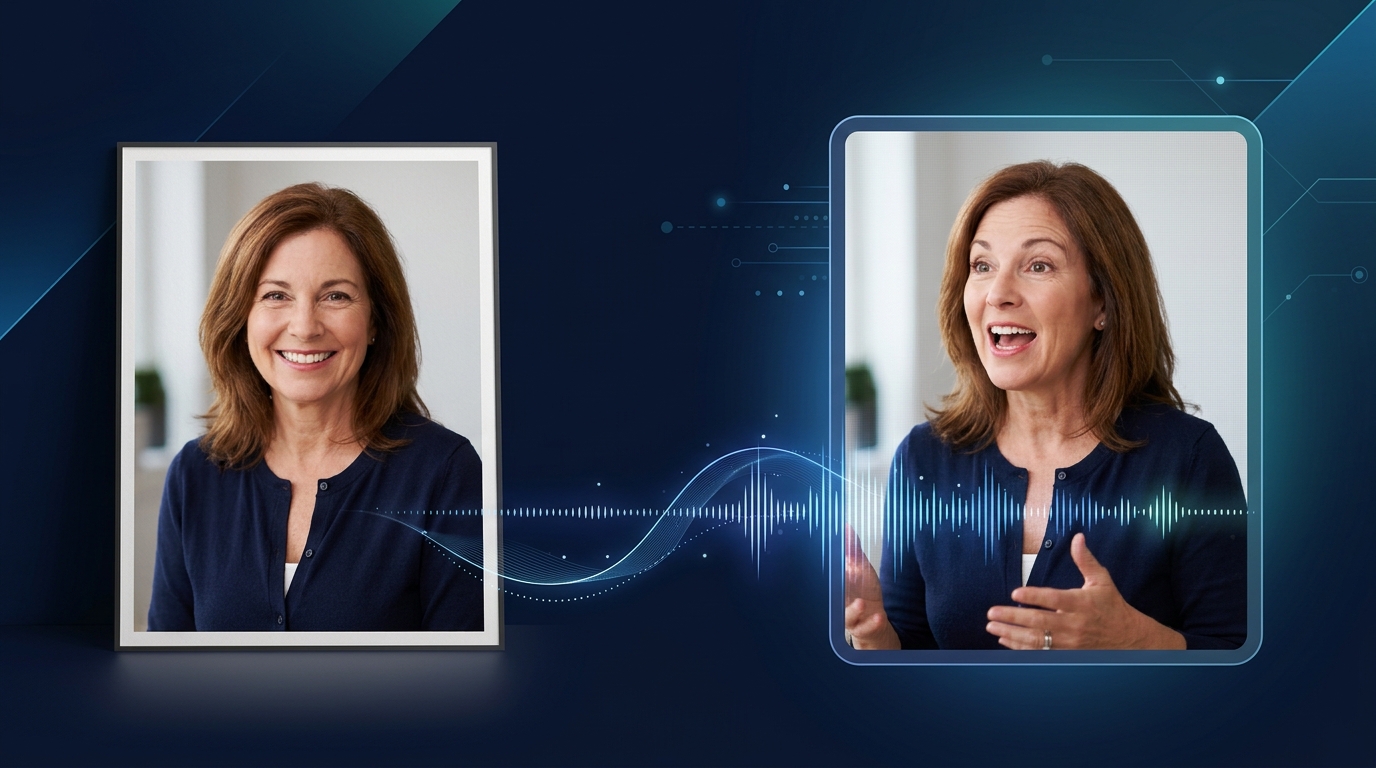
One photo. One voice. A video of that person speaking, with lips, eyes, head and hands moving naturally in time with every word.
That is what an AI talking photo is. A few years ago it meant a stiff face with a flapping mouth. Today's models animate the whole person: blinks, small head turns, eyebrows on the stressed words, hands that gesture while they talk. Used well, it looks like a real recording.
This guide shows how to make one in Kolbo.AI, which model to pick for which job, and how to get a result that does not look fake.
What You Need
A photo. A clear, front-facing or three-quarter portrait works best. It can be a real photo, an illustration, a 3D character or an image you generated with AI.
A voice. Two options:
- Upload a recording of the line, in any language.
- Type a script and let a text-to-speech voice read it. Kolbo.AI has thousands of voices, and you can clone your own voice from a short sample so the photo speaks as you.
That is all. No studio, no camera, no actor.
How to Make a Talking Photo in Kolbo.AI
- Open Video Tools and choose Lipsync. Open lipsync.
- Upload your photo.
- Add the audio: upload a file, record it, or write a script and choose a voice.
- Pick a model (see below) and generate. The price is shown before you start.
- Download the video, or keep editing: add captions, music or trim it in the video editor.
Which Model to Choose
| Model | Best for |
|---|---|
| Avatar IV | Realistic presenters and spokespeople from a single photo. Natural head and hand movement, strong lip accuracy. |
| OmniHuman 2.0 | Full-body and half-body shots, expressive performances, singing. Animates more of the body. |
| Kling lipsync | When your source is already a video and you only need new mouth movement. |
Not sure? Run the same photo and audio on two models and keep the better take. Many creators do exactly that for anything that will be published.
Tips for a Natural Result
Use a sharp, well-lit photo. Face clearly visible, mouth closed or slightly open, no hand covering the face.
Leave room around the head. A tight crop gives the model nothing to move. Shoulders in frame look far more natural.
Match the voice to the face. Age, gender and energy should fit the person in the picture. A calm portrait with a shouting voice will always feel off.
Write for speaking. Short sentences, natural pauses. Read your script out loud once before you generate.
Keep clips short. 10 to 30 seconds per take is the sweet spot for social. For longer content, generate scene by scene and join them in the editor.
What People Use It For
Spokesperson and explainer videos
A founder, a teacher or a brand character presenting a product, a lesson or an update, without a shoot.
Multilingual content
Record once, then make the same photo speak in Hebrew, Arabic, Spanish or English with a translated script and the same cloned voice.
Social content and UGC-style ads
Faces that talk to the camera perform better in the feed. A talking photo gets you there in minutes.
Characters and storytelling
Give your AI-generated character or mascot a voice for a series, a game trailer or a kids' story.
Use It Responsibly
Only animate photos of yourself, people who gave you permission, or characters you created. Do not use a real person's face or voice to say something they did not say.
Frequently Asked Questions
Do I need video of the person? No. One still photo is enough.
Can it speak Hebrew or Arabic? Yes. Lipsync follows the audio, so any language works. Write the script in your language and pick a voice that speaks it, or upload your own recording.
Can I use my own voice? Yes. Clone your voice from a short sample, then type any script and the photo speaks in your voice.
How long can the video be? It depends on the model. For long scripts, split them into parts and join the clips in the video editor.
Make your first talking photo at app.kolbo.ai.